Sync Stripe
Now that Stripe and QuickBooks are connected and your Account Mappings are set, you’re ready to bring your Stripe data into Mabel.
Note
You only need to do this step once. Going forward, Mabel will bring in new transactions and payout information every 24 hours (around 6am Eastern time).
Step 1: Open the Dashboard
- In the Mabel sidebar, click Dashboard
-
You’ll see the Quick Sync button at the top of the page
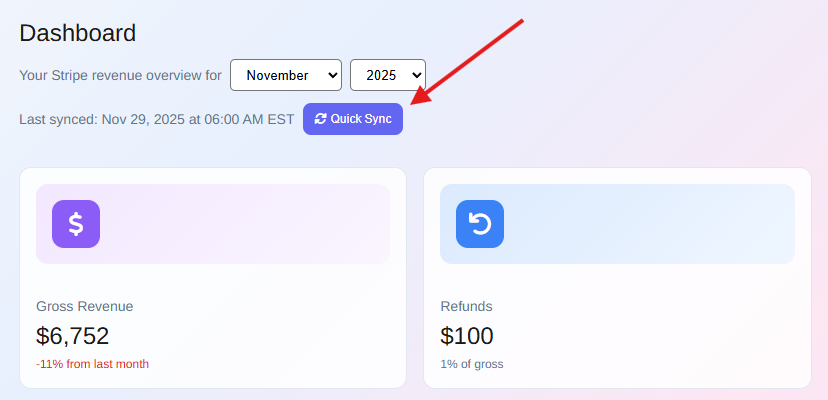
Step 2: Run Quick Sync
- Click Quick Sync
-
Mabel will start importing your:
- Stripe transactions
- Stripe fees
- Refunds (if applicable)
- Payouts
This usually takes just a few seconds, but if you have a large number of transactins it may take a minute or two.
When it’s done, you'll get a quick pop-up letting you know the sync was successful and the dashboard will update automatically.
What you’ll see
After syncing, you should see:
- Stats cards showing your revenue and fee totals
- Charts with your recent activity
- A list of your Stripe payouts under the “Payouts” page
This tells you everything imported correctly.
If nothing shows up, double-check:
- the Stripe connection shows “Connected” in Settings
- your Stripe API key is correct
- your Stripe account actually has payouts for the period
👉 Next step: Send your payouts to QuickBooks.