Send Your Payouts to QuickBooks
Now that your Stripe payouts have been imported into Mabel, you can create the matching deposits in QuickBooks with just one click.
Note
We recommend you follow these steps to manually send a couple of payouts to Quickbooks to make sure everything is working correctly. After that, you can turn on Automatic Export so the deposits get created in QuickBooks automatically. If you turn on Automatic Exports, you won't have to continue sending payouts to QuickBooks manually.
Step 1: Open the Payouts page
- In the Mabel left sidebar, click Payouts
-
You’ll see a list of all the Stripe payouts that were pulled in during Quick Sync
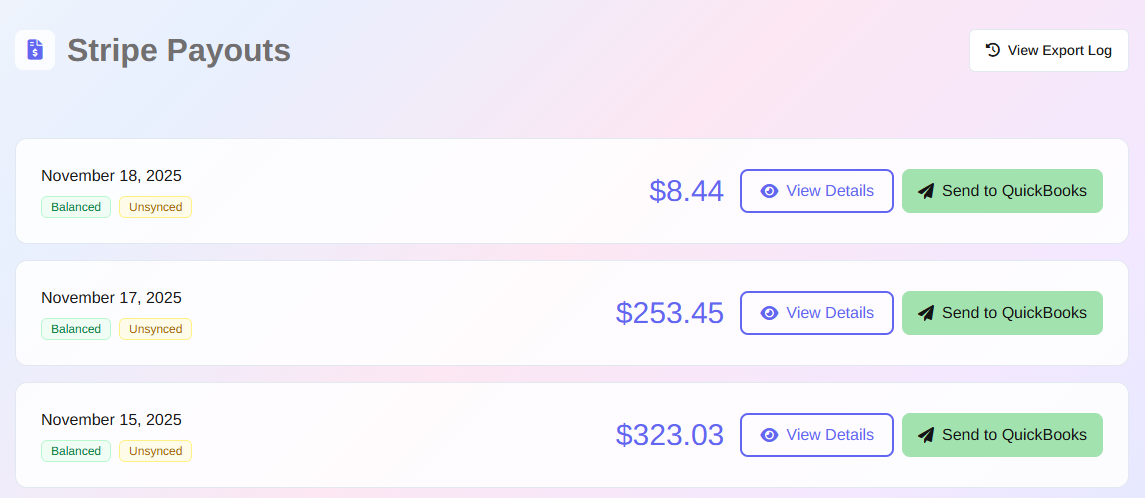
Step 2: Select a payout to send to QuickBooks
-
You can work from either:
- the Payouts list, or
- the pop-up window that appears when you click View Details
-
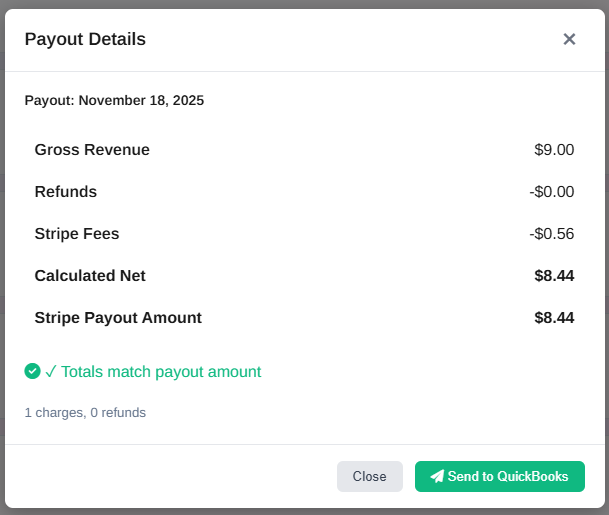
Inside the payout details, you’ll see:
- the gross revenue
- the Stripe fees
- the net payout amount
This mirrors what Stripe actually deposited into your bank account.
Step 3: Send the payout to QuickBooks
- Click Send to QuickBooks
- Mabel will create a Bank Deposit inside QuickBooks using your Account Mappings
-
When it’s done:
- you'll get a success message
-
the Send to QuickBooks button changes to Already Sent
(This prevents duplicate deposits in QuickBooks — you cannot send the same payout twice.)
What Mabel creates in QuickBooks
Mabel creates a deposit that looks like this:
- Line 1: Gross Revenue → your chosen revenue account
- Line 2: Stripe Fees (negative) → your fees account
- Line 3: Refunds (negative) → your refunds account (if applicable)
The deposit amount matches exactly what landed in your bank account.
You’ll confirm the match in the next step.
👉 Next step: Match the deposits in your QuickBooks Bank Feed