Connect QuickBooks
This step lets Mabel create deposits in your QuickBooks file on your behalf.
Step 1: Start the QuickBooks connection
- If you're not already on the Settings page, in the left sidebar, click on Settings
- Find the QuickBooks Connection box
-
Click Connect
A new window will open — this is the official Intuit login popup. Login like you normally would.
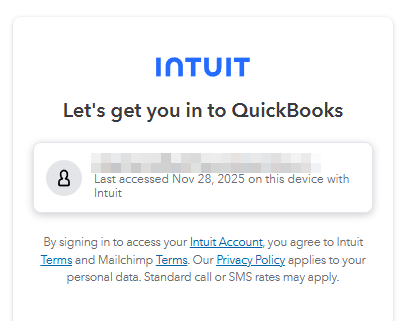
Step 2: Approve the connection
You should now be on a permissions screen.
- Select your company
-
Click "Next"
Quickbooks will show you a "Connecting Mabel to [your company] screen".
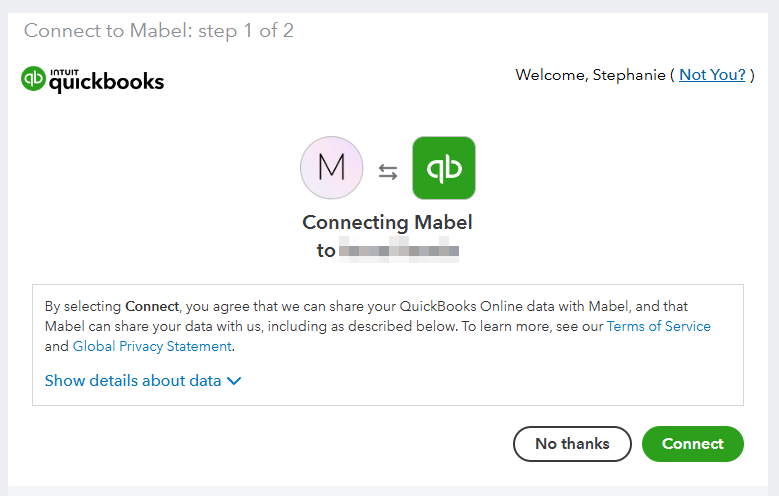
-
Click "Connect"
The window will close automatically and you'll be back in the settings page of Mabel.
Step 3: Test the connection
Back in Mabel:
- Click Test Connection
- You should see a success message confirming QuickBooks is linked
Note
If QuickBooks ever disconnects, you can reconnect using the same button.
👉 Next step: Set your Account Mappings