Automatic Export to QuickBooks
Automatic export sends payouts directly to QuickBooks without you having to log into Mabel and click the "Send to Quickbooks button.
How Automatic Export works
- Every morning around 6am Eastern, any available payouts will be sent to Quickbooks as deposits.
- If you've already sent a payout manually, a duplicate will NOT be sent. (Mabel is smart enough to not let this happen!)
- If a payout isn't balanced (meaning that for some reason, the information Mabel pulled in from Stripe (revenue, fees, refunds, etc doesn't match the payout amount), that payout won't be sent to QuickBooks.
- The next time you go into QuickBooks to do your bookkeeping, all you need to do is click "Match" for all the Stripe payouts in your bank feed.
Coming Soon
It's high on our roadmap to add email notifications of when payouts fail to be sent to QuickBooks. We'll let you know as soon as it's ready!
Step 1: Turn on Automatic Export
- From Mabel's left-hand sidebar, click Settings ➡️ Auto-Export
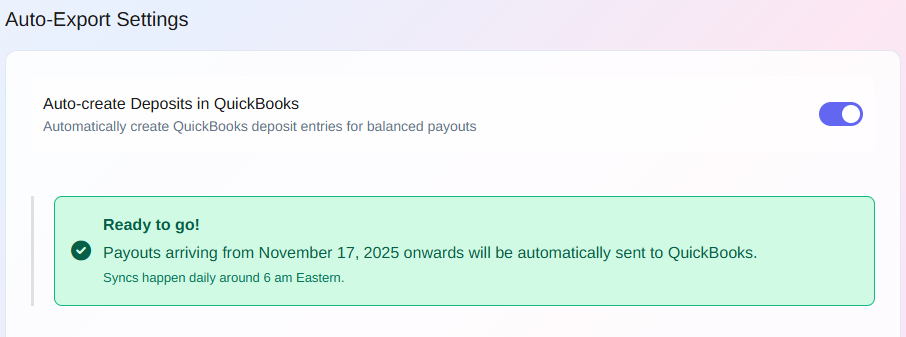
- Turn on the "Auto-create Deposits in Quickbooks" toggle.
-
You'll get a green "Ready to go! success message.
-
Note: Mabel will only send payouts to Quickbooks starting the day after you turn on auto-export. If you want previous payouts to be sent, you can trigger that manually by going to the Payouts page and clicking the "Send to Quickbooks" button for the payouts you want to send.
That's it! You're officially done setting up Mabel. Stripe transactins will flow into Mabel and then out as balanced deposits to your QuickBooks account. 🎉🎉🎉
We're working very hard to bring more features to Mabel that will make her even MORE helpful. You can see all those here.