QuickBooks Account Mapping
Account Mapping tell Mabel which categories in QuickBooks you want to use for your Stripe revenue, fees, and refunds.
What “account mapping” actually mean
Every Stripe payout contains three basic pieces:
- Revenue (your gross sales)
- Stripe fees (the processing fees)
- Bank account (where Stripe sends the actual payout)
QuickBooks needs to know which category to use for each one.
That’s all you’re choosing here.
Step 1: Open Account Mapping
- If you're not already on the setting page, from the left-hand sidebar, click Settings
-
Click the Account Mapping section. You’ll see four dropdowns, each listing your QuickBooks categories.
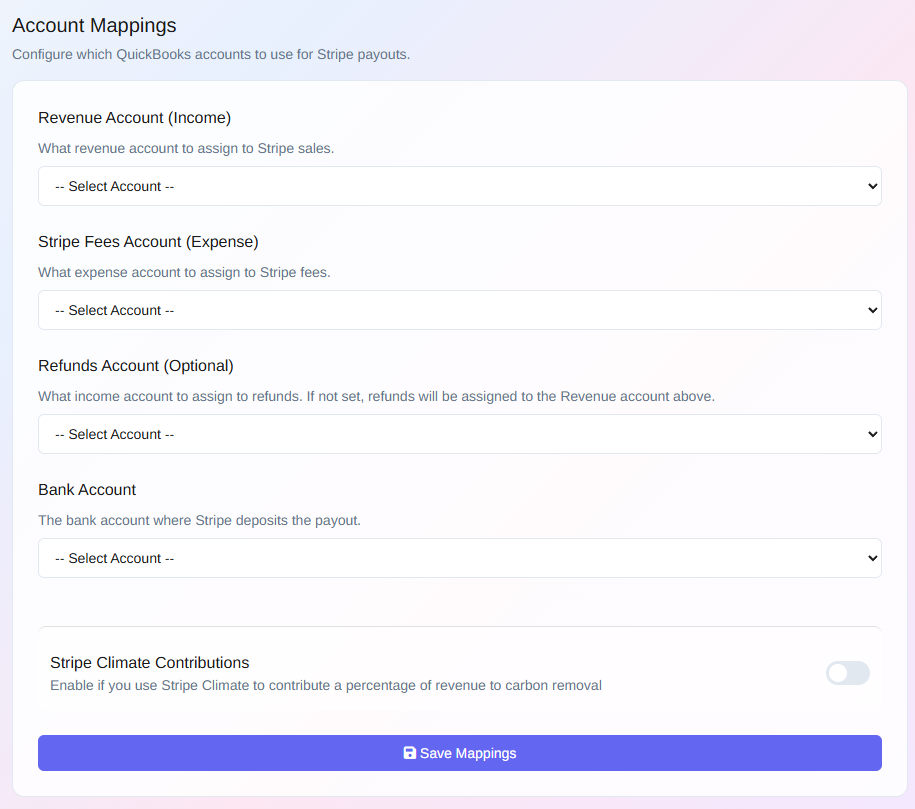
Step 2: Choose your QuickBooks categories
Here’s what each field means and what most users pick:
Revenue account
Where the gross amount from Stripe goes.
Common picks:
- Sales
- Stripe Income
- Service Income
⭐ If you want to create a new revenue category in QuickBooks, follow these instructions.
Stripe fees account
Where the processing fees should be recorded.
Recommended:
- Stripe Fees
- Bank Charges
- Merchant Account Fees (if you're a bit old school!)
⭐ If you don’t have one of these (or want to create a custom category), follow these instructions.
Refunds account (optional)
If you regularly issue refunds through Stripe, choose the category where you normally track them.
If you rarely refund customers, you can leave this blank.
Bank account
This is the actual bank account where Stripe deposits the payouts.
Example:
- Bank of America Checking
- Chase Business Checking
This ensures Mabel creates the deposit in the correct bank account, so it's easy to match in your QuickBooks bank feed.
Additional Settings
If your Stripe account is set up for any of the following, you can enable that setting and map to the appropriate QuickBooks cateory:
- Stripe Climate Contributions
- Stripe Capital Financing
- Stripe Minimum Balance Holds/Releases
Step 3: Save your mappings
Click Save Mappings.
Tip
You can change these settings at anytime. If you DO change them, it will only effect the QuickBooks categories for payouts going forward. It wont effect payouts that have already been sent to QuickBooks.
🎉 Woot! Your Account Mappings are set.
Now Mabel knows exactly where to put your Stripe activity in QuickBooks.
👉 Next step: Do your first Stripe Sync